
Download Awesome Screenshot – Free Chrome Screenshot Extension
Overview
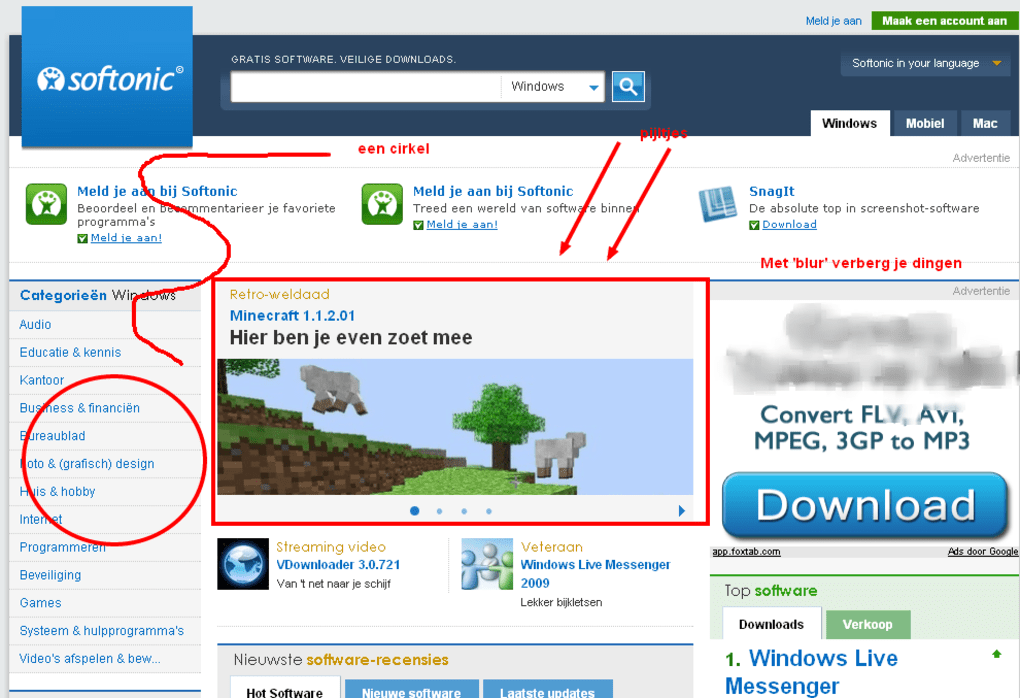
Awesome Screenshot is a free browser extension designed for Google Chrome that turns web‑page capture into a single‑click experience. Whether you need to archive a reference article, illustrate a tutorial, or simply share a visual of a product page, this tool gives you three capture modes—Visible Part of Page, Selected Area, and Entire Page—directly from a small camera‑lens icon on the toolbar. After taking a snapshot, the built‑in editor lets you crop, annotate with text, arrows, or shapes, blur sensitive information, and then either download the image to your local drive or upload it to the Awesome Screenshot cloud.
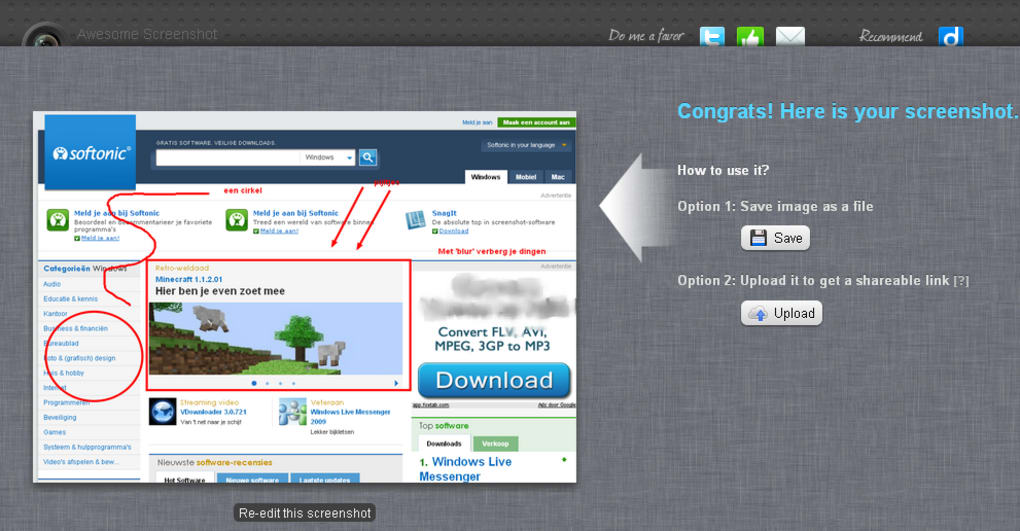
The uploaded version generates a short, shareable URL that can be copied to emails, chat, or social media without the need for additional hosting services. While the extension is lightweight and runs entirely within the browser, it still offers a secure upload process backed by HTTPS encryption, ensuring that your screenshots are stored safely. Users appreciate the intuitive workflow: one click to capture, a few seconds to edit, and another click to save or share.
Although the Selected Area tool occasionally struggles with complex page layouts, the post‑capture cropping feature provides an effective workaround. Overall, Awesome Screenshot delivers a balance of simplicity and functionality that makes it a solid choice for anyone looking for a quick, reliable way to capture web content.
Key Features
- Capture Visible Part, Selected Area, or Entire Page with a single click.
- Built‑in editor for cropping, blurring, adding text, arrows, shapes, and highlights.
- One‑click upload to a secure cloud service with a shareable short URL.
- Option to download images directly in PNG or JPG format.
- Automatic screenshot naming based on page title and timestamp.
- Keyboard shortcuts for faster workflow (e.g., Ctrl+Shift+S to open capture menu).
- Integration with popular project management tools via URL sharing.
- Free to use with no hidden fees; premium plan available for additional storage.
The feature set is deliberately kept lean to avoid overwhelming users. Each tool appears as an icon in the editor toolbar, allowing you to switch between actions without leaving the capture screen. The cloud upload leverages Google’s OAuth for optional sign‑in, but you can also remain anonymous and still generate a shareable link. Because the extension runs locally in Chrome, there is no need to install additional software, making it a perfect fit for both personal browsing and professional environments where quick visual communication is essential.
Installation, Compatibility & How to Use Awesome Screenshot
Installing Awesome Screenshot is straightforward. Open the Chrome Web Store, search for “Awesome Screenshot,” and click the “Add to Chrome” button. Chrome will request permission to read and change data on the websites you visit—this is necessary for the extension to capture page content.
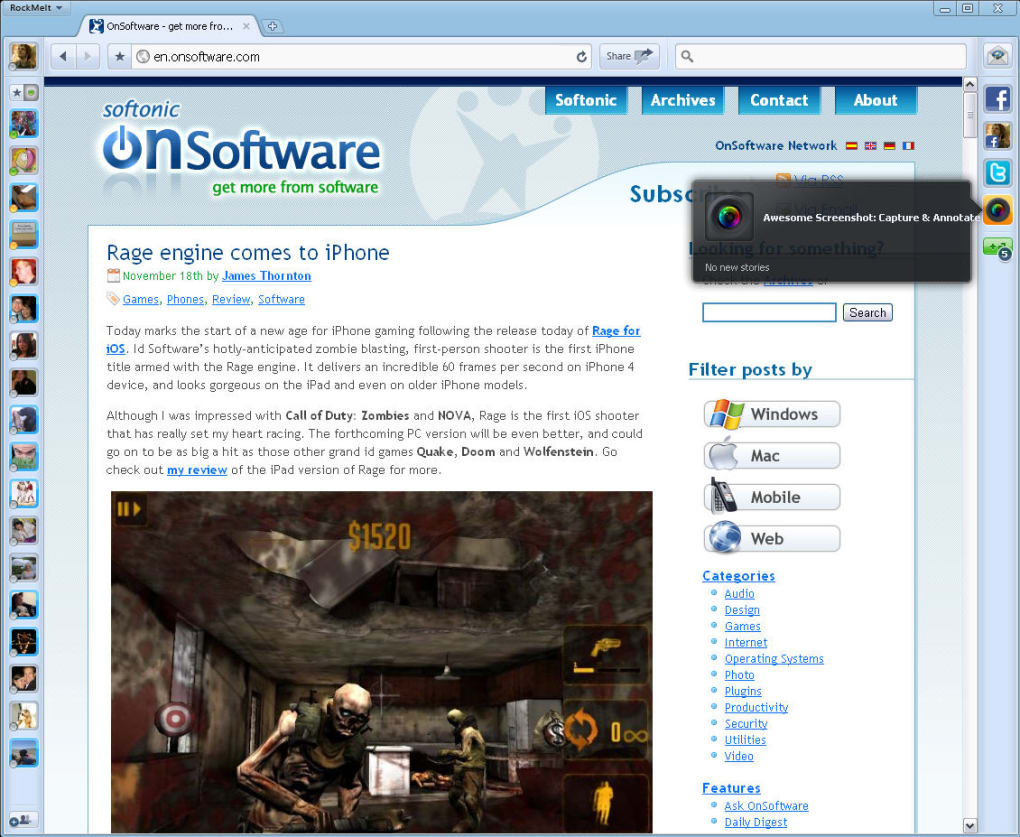
Once installed, a small camera‑lens icon appears to the right of the address bar. The extension is compatible with any operating system that supports Google Chrome, including Windows 10/11, macOS Catalina and later, Linux distributions, and Chrome OS. Because it runs as a Chrome extension, there is no separate desktop client for Windows or Mac, which eliminates version‑control headaches.
To capture a screenshot, click the icon and choose one of the three options. Capture Visible Part grabs the portion of the page currently displayed on the screen—ideal for quick reference. Capture Entire Page scrolls automatically, stitching together a full‑length image of the website, useful for long articles or infinite scroll pages. Capture Selected Area allows you to draw a rectangle over the desired region; if the selection is inaccurate, you can refine it later using the editor’s crop tool.
After the capture, the editing interface loads instantly. Use the toolbar to add annotations, blur personal data, or highlight key sections. When you’re satisfied, click “Save” to download the file or “Upload” to store it in the cloud. The upload process creates a unique URL that you can copy with a single click. For teams that need centralized storage, the optional sign‑in provides a personal dashboard where all uploads are listed, searchable by date or page title.
Because the extension updates automatically through the Chrome Web Store, you always have the latest security patches and feature improvements without manual intervention. The lightweight nature of the tool ensures it consumes minimal memory, keeping your browsing experience smooth even on older machines.
Pros, Cons, FAQ & Final Verdict
Pros
- Completely free with optional premium storage.
- Simple, three‑click capture workflow.
- Robust built‑in editor eliminates the need for external tools.
- Secure cloud upload and short, shareable URLs.
- Works on any OS that runs Chrome, no extra installations.
Cons
- Selected Area tool can be imprecise on complex layouts.
- Limited file format options (PNG/JPG only).
- Cloud storage is optional; free tier offers limited space.
Frequently Asked Questions
Is Awesome Screenshot safe to use?
Yes. The extension uses HTTPS encryption for all cloud uploads, and the source code is publicly listed in the Chrome Web Store, allowing users to verify its permissions.
Can I capture screenshots on mobile Chrome?
Awesome Screenshot is currently only available as a desktop Chrome extension. Mobile users can use Chrome’s built‑in screenshot feature or switch to a dedicated mobile app.
Do I need to create an account to use the cloud upload?
No. You can upload anonymously and receive a shareable link. Creating an account simply gives you a personal dashboard to manage your screenshots.
What image formats are supported for download?
Awesome Screenshot lets you save captures as PNG or JPG. PNG is the default for loss‑less quality, while JPG offers smaller file sizes.
Is there a limit to how many screenshots I can capture?
There is no hard limit on captures. Free users have a limited amount of cloud storage, but you can always download images locally without restriction.
Awesome Screenshot delivers a fast, free solution for web capture with a clean editor and secure sharing options. Minor quirks with the Selected Area tool keep it from being perfect, but the overall value is high for casual and professional users alike.
Conclusion – Should You Download Awesome Screenshot?
If you spend any amount of time navigating the web and need to preserve visual information, Awesome Screenshot offers a straightforward, no‑cost solution that works on any platform supporting Chrome. Its three capture modes, quick annotation tools, and instant sharing links make it a versatile companion for educators, marketers, developers, and everyday browsers. While the Selected Area selection can be a bit finicky, the ability to crop after capture mitigates this issue without adding complexity.
With secure cloud storage, optional account management, and automatic updates, the extension stays reliable and safe for long‑term use. For anyone looking for a hassle‑free way to screenshot webpages, the benefits far outweigh the minor drawbacks. Download Awesome Screenshot today and start capturing your web moments in seconds.







